
KODO Popup WordPress Plugin
Build popup campaigns in WordPress with Gutenberg-powered designs, flexible display rules, and simple publishing controls.
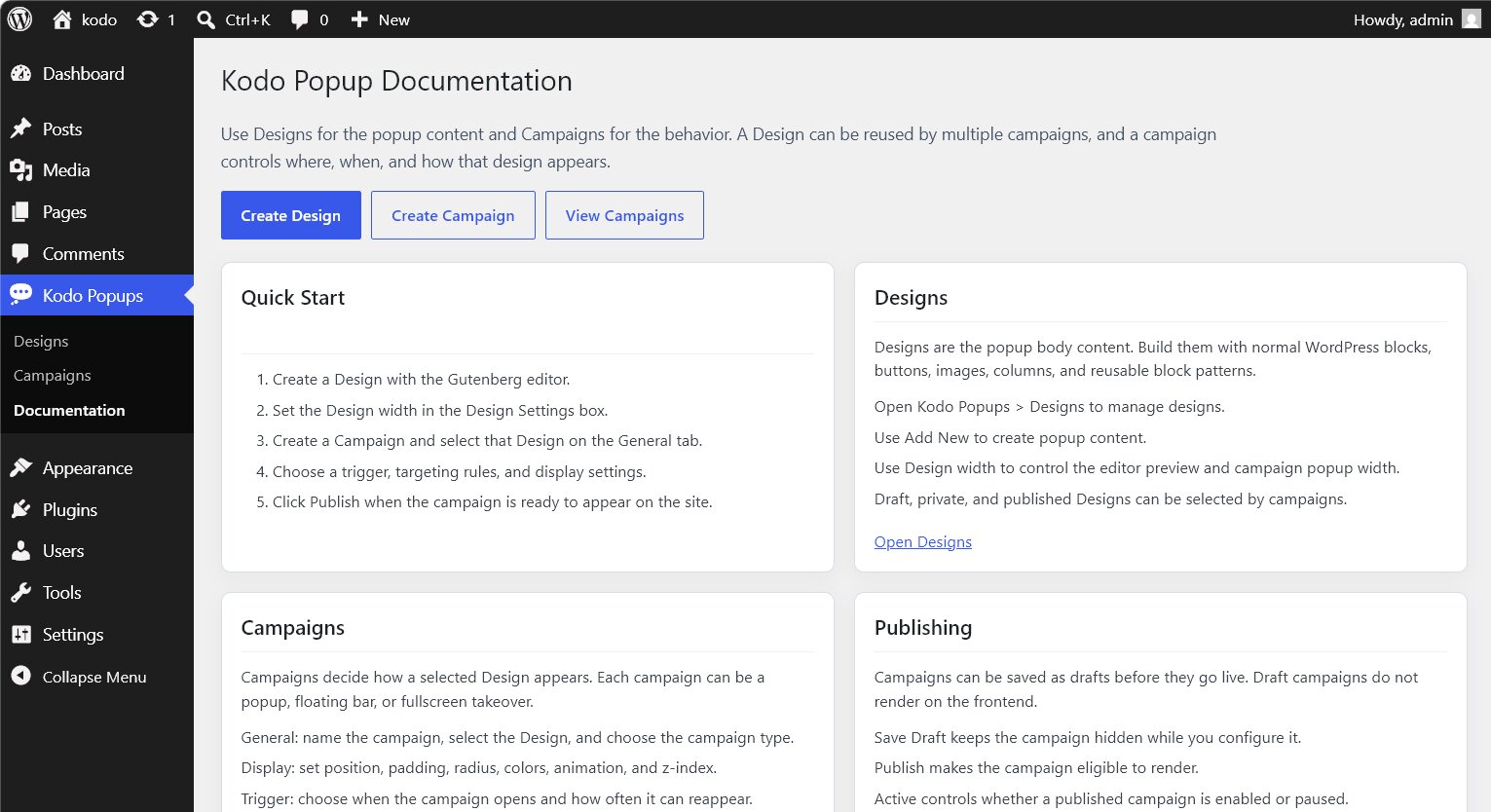
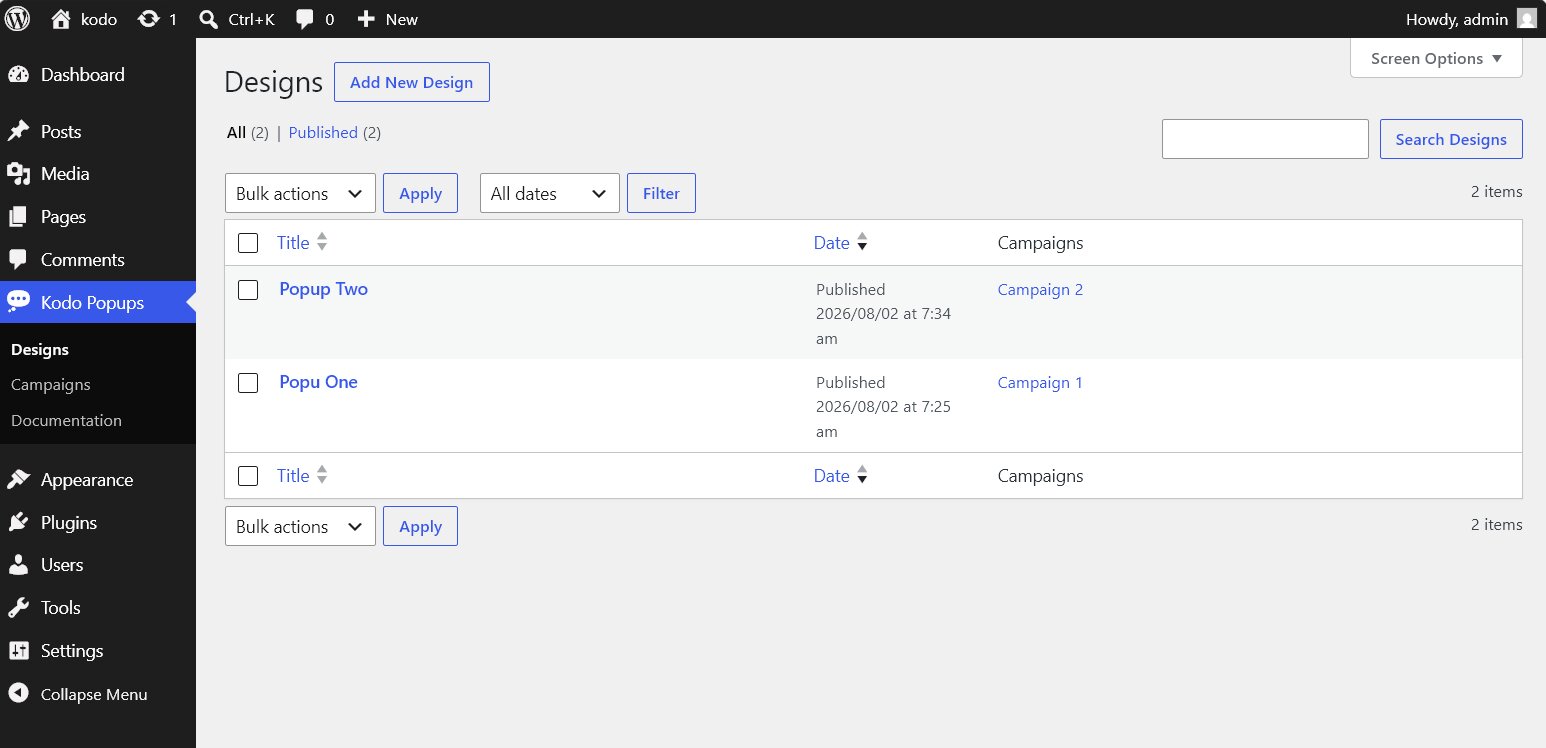
Kodo Popup separates popup content from campaign behavior. Create reusable Designs with the WordPress block editor, then choose when, where, and how those Designs appear using Campaigns.
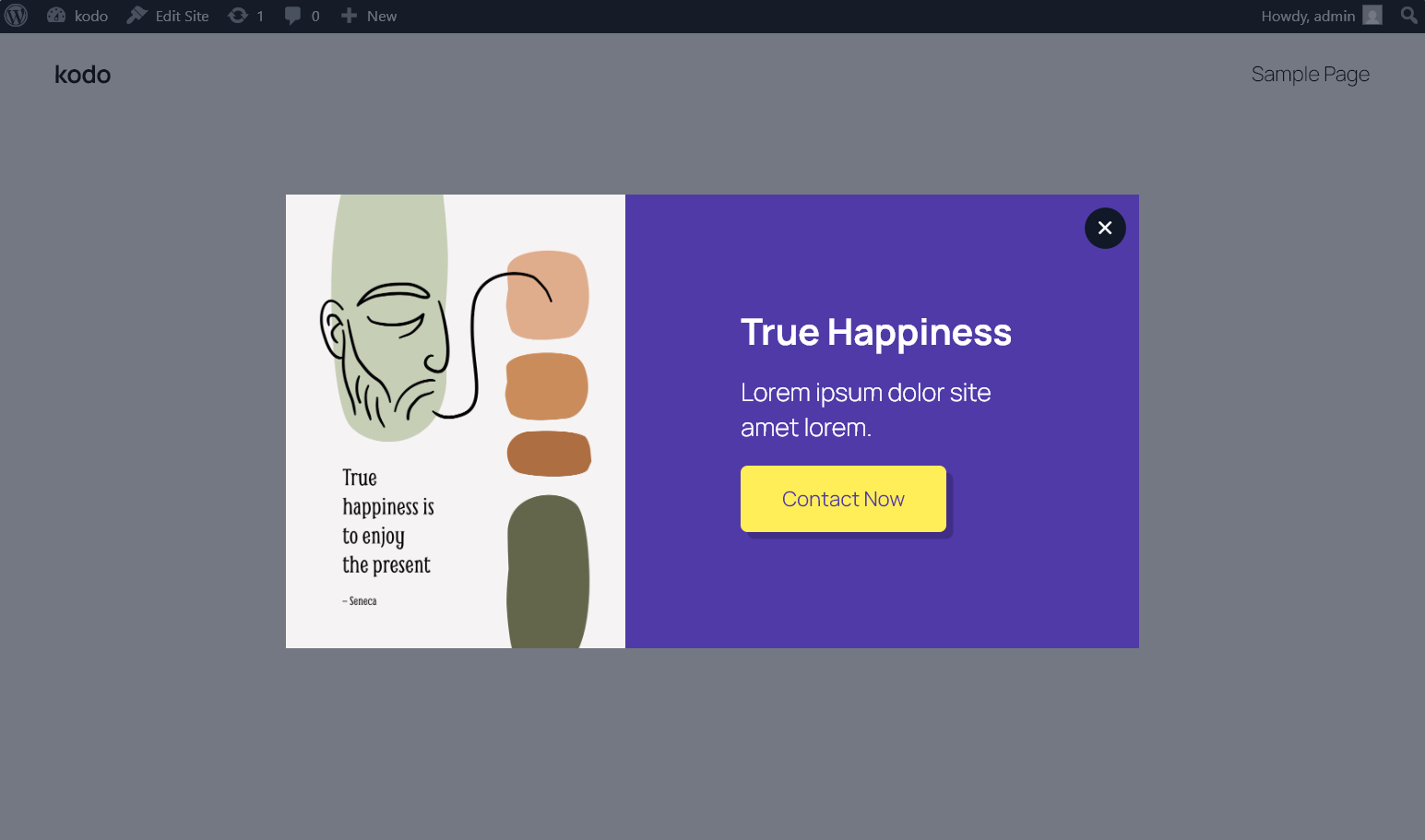
What KODO Popup Helps You Do
Kodo Popup gives WordPress site owners a clean way to create:
Use it for offers, lead magnets, notices, announcements, discounts, booking prompts, newsletter signups, and campaign-specific calls to action.
- Modal popups
- Floating bars
- Fullscreen campaigns
- Click-triggered promotions
- Timed announcements
- Scroll-depth offers
- Exit-intent messages
- Shortcode-only popups
Why Use Kodo Popup
Most popup tools mix design, targeting, triggers, and publishing into one crowded editor. Kodo Popup keeps the workflow simple.
Create the content once as a Design. Reuse it across campaigns. Control the display behavior separately.
This makes popups easier to maintain, easier to reuse, and easier to test without rebuilding the same content again and again.
How It Works
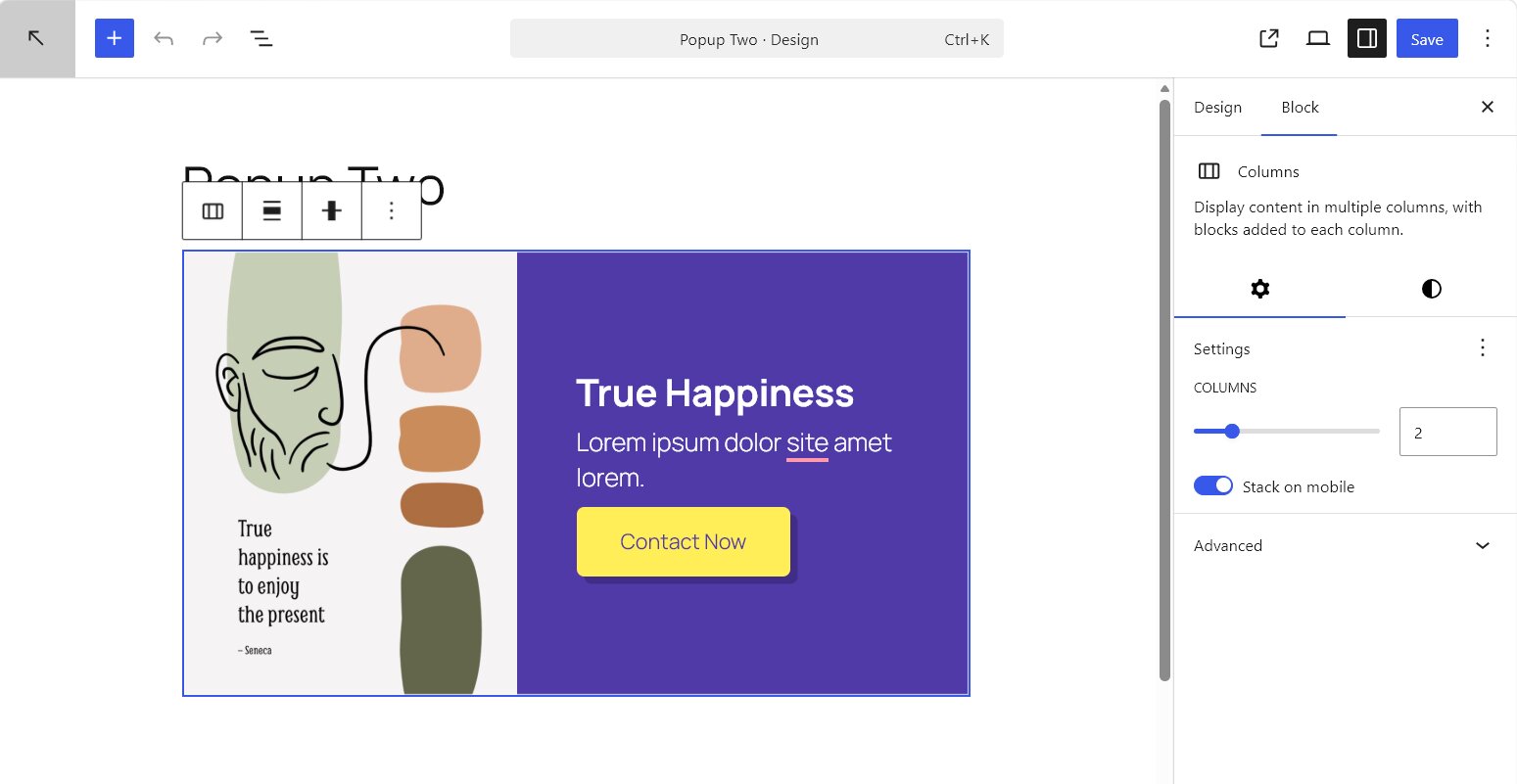
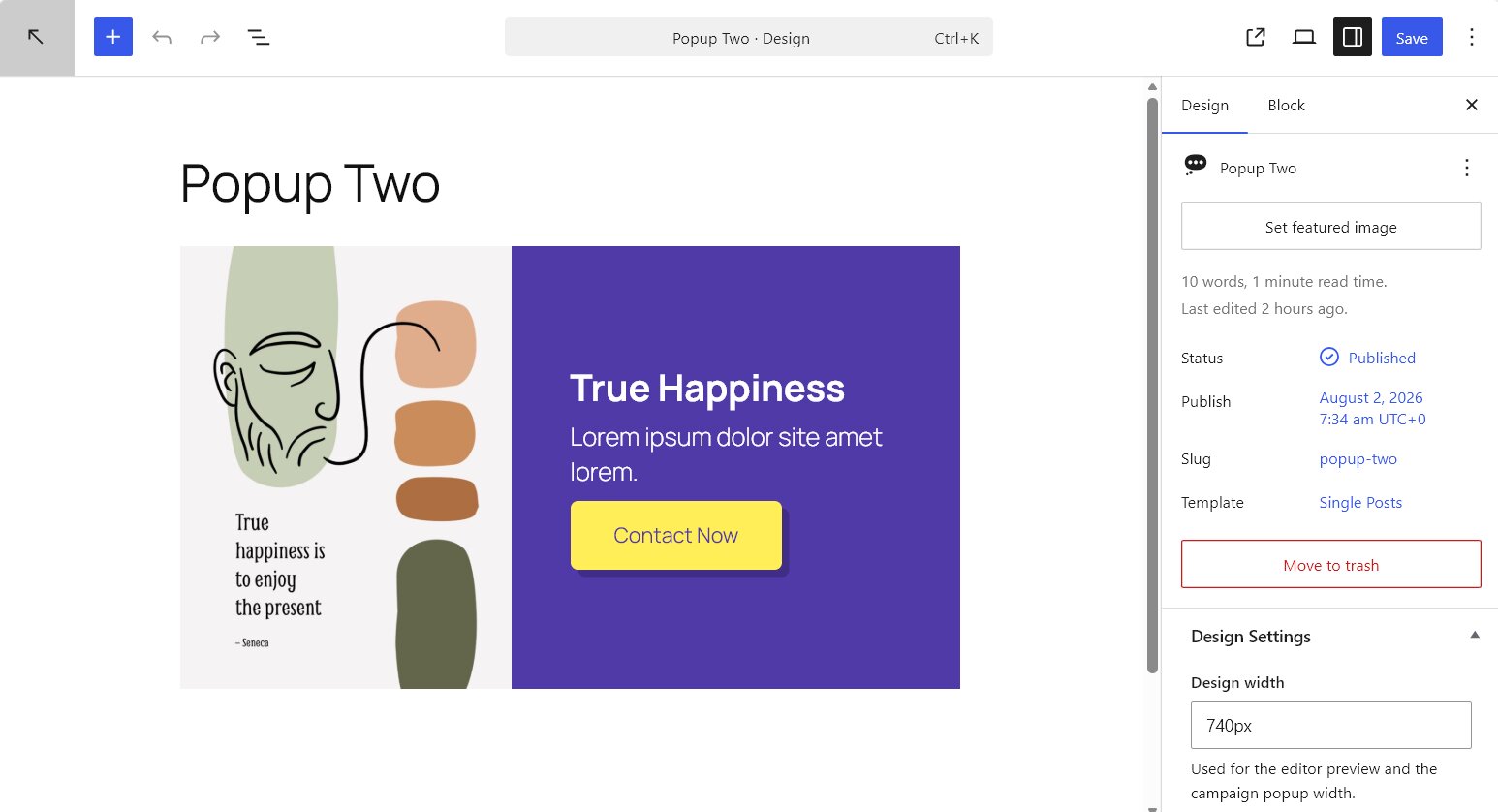
- Create a Design Use the Gutenberg editor to build the popup content with normal WordPress blocks, including headings, text, buttons, images, columns, and patterns.
- Set the Design Width Choose the width used for both the editor preview and the popup panel on the frontend.
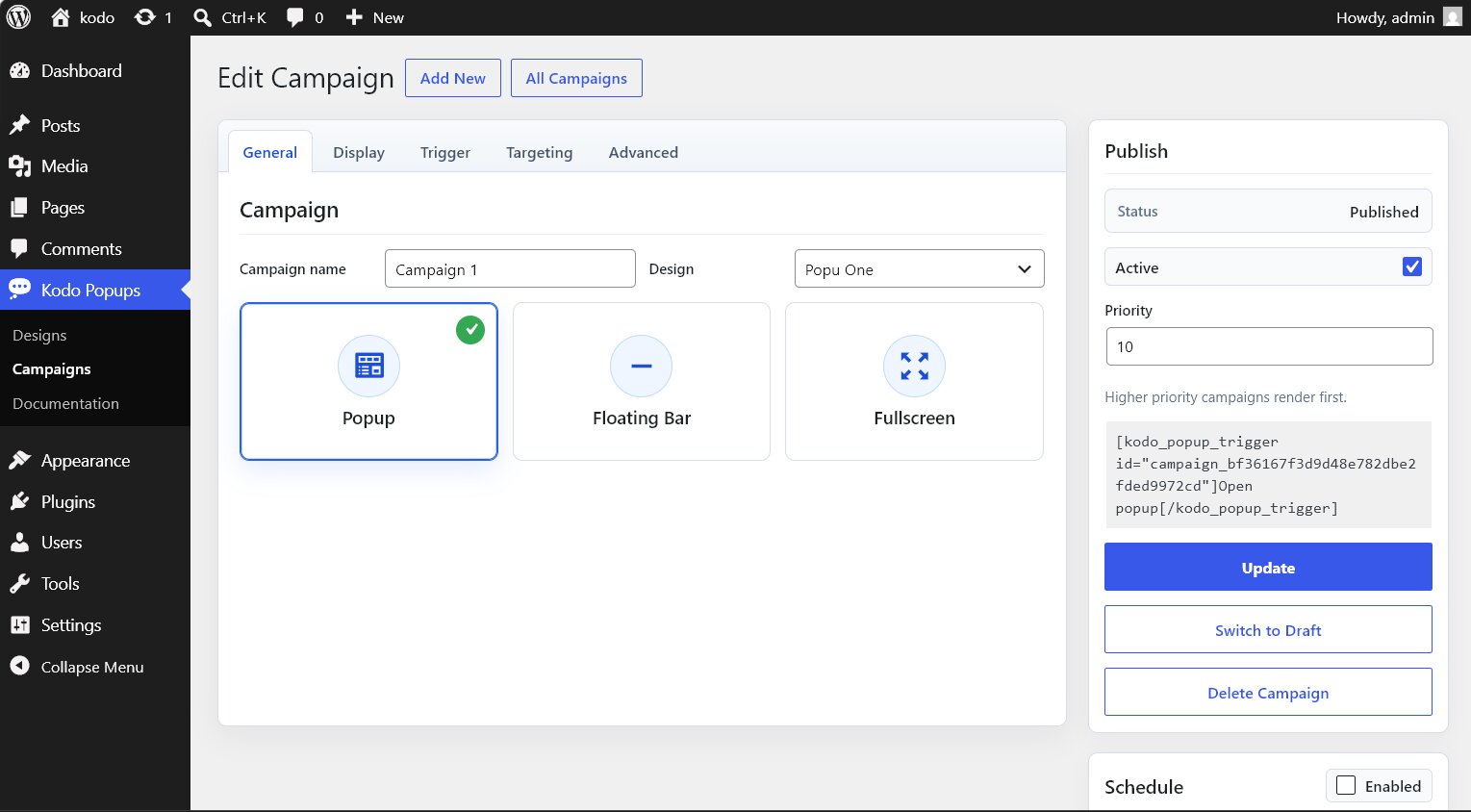
- Create a Campaign Select the Design, choose the popup type, and configure how the campaign should behave.
- Choose Display Rules Control triggers, targeting, scheduling, device visibility, repeat frequency, animation, overlay, and close behavior.
- Publish When Ready Save a campaign as a draft while working. Publish it when it should appear on the site.
Popup Types
KODO Popup supports three campaign formats.
Popup
A centered or positioned modal with optional overlay, close button, animation, and custom styling.
Floating Bar
A full-width top or bottom bar for announcements, notices, promotions, and quick calls to action.
Fullscreen
A fullscreen campaign experience for high-priority messages, launches, and focused conversion flows.
Trigger Options
Choose when each campaign opens.
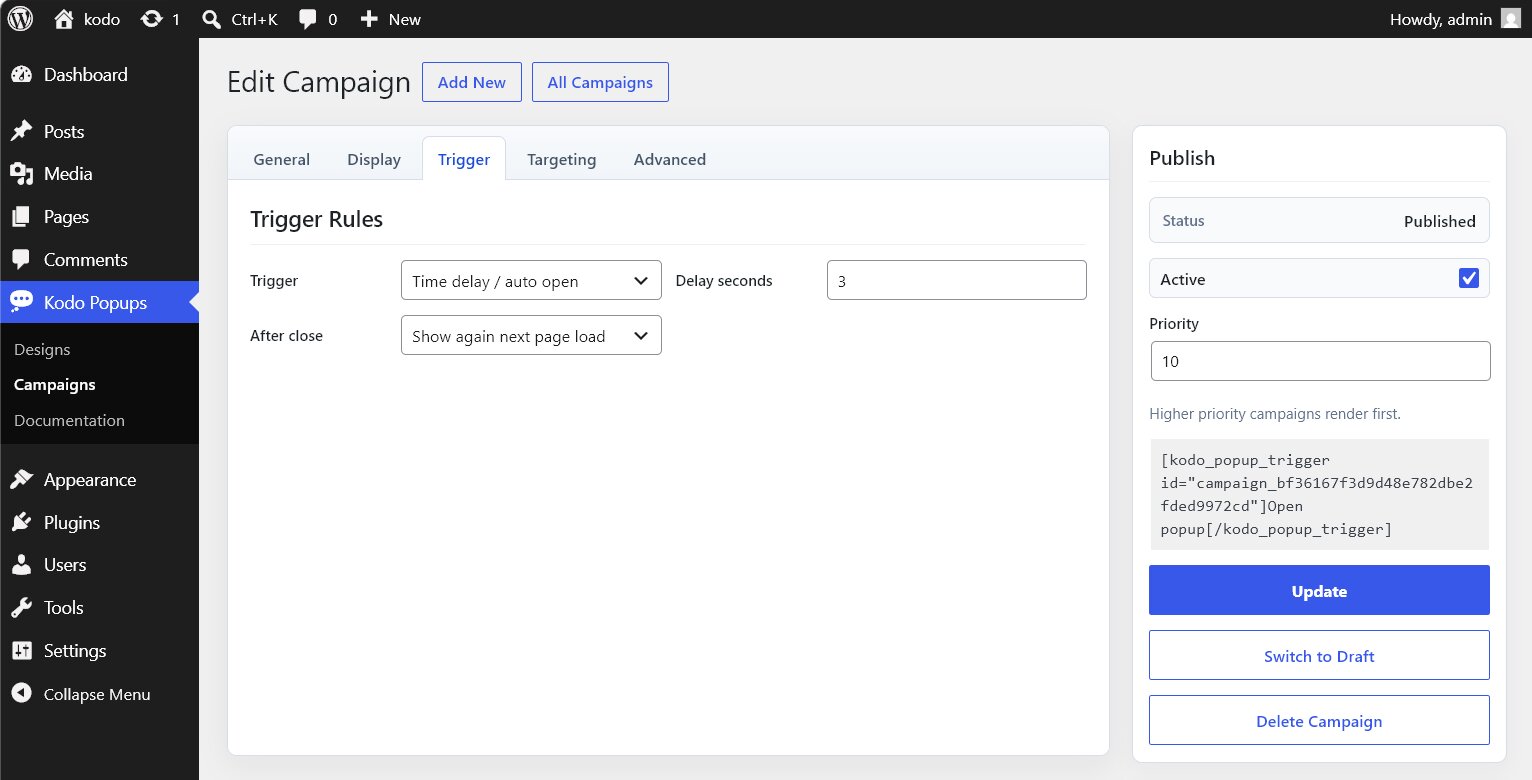
- Time delay: open after a set number of seconds
- Scroll depth: open after the visitor scrolls to a chosen page percentage
- Exit intent: open when the visitor moves toward leaving the page
- Click selector: open when a matching button, link, or element is clicked
- Manual JavaScript: open only when custom code calls the campaign
Shortcode trigger example:
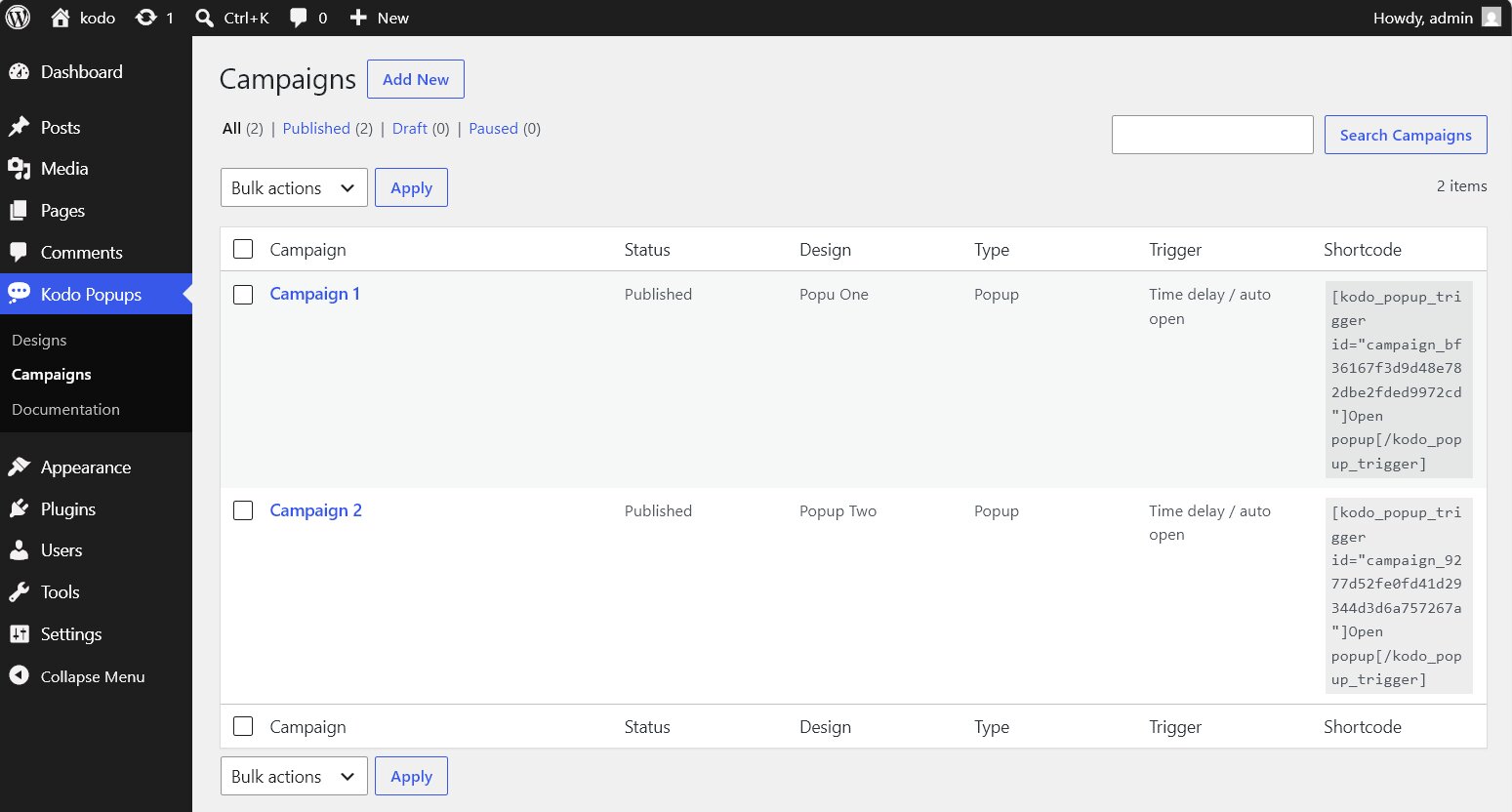
[kodo_popup_trigger id="campaign_id"]Open popup[/kodo_popup_trigger]JavaScript trigger example:
KodoPopup.open("campaign_id");Targeting Controls
Show campaigns only where they make sense.
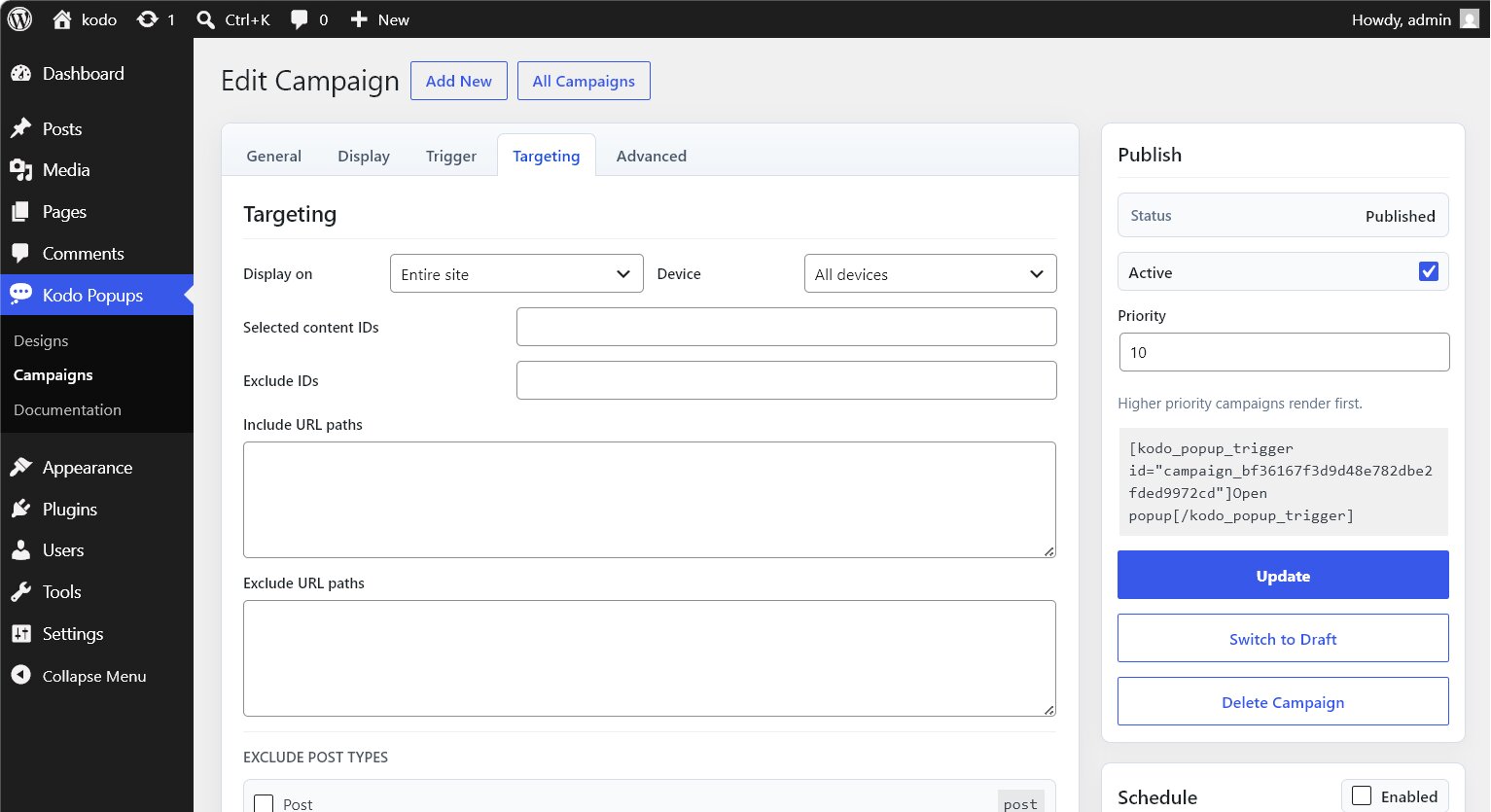
- Entire site
- Homepage or blog index
- All pages
- All posts
- Selected content IDs
- URL paths
- Shortcode-only display
- Desktop, mobile, or all devices
- Excluded pages or posts
- Excluded post types
URL path targeting supports exact paths and wildcard-style patterns.
/pricing
/services/*
/special-offer
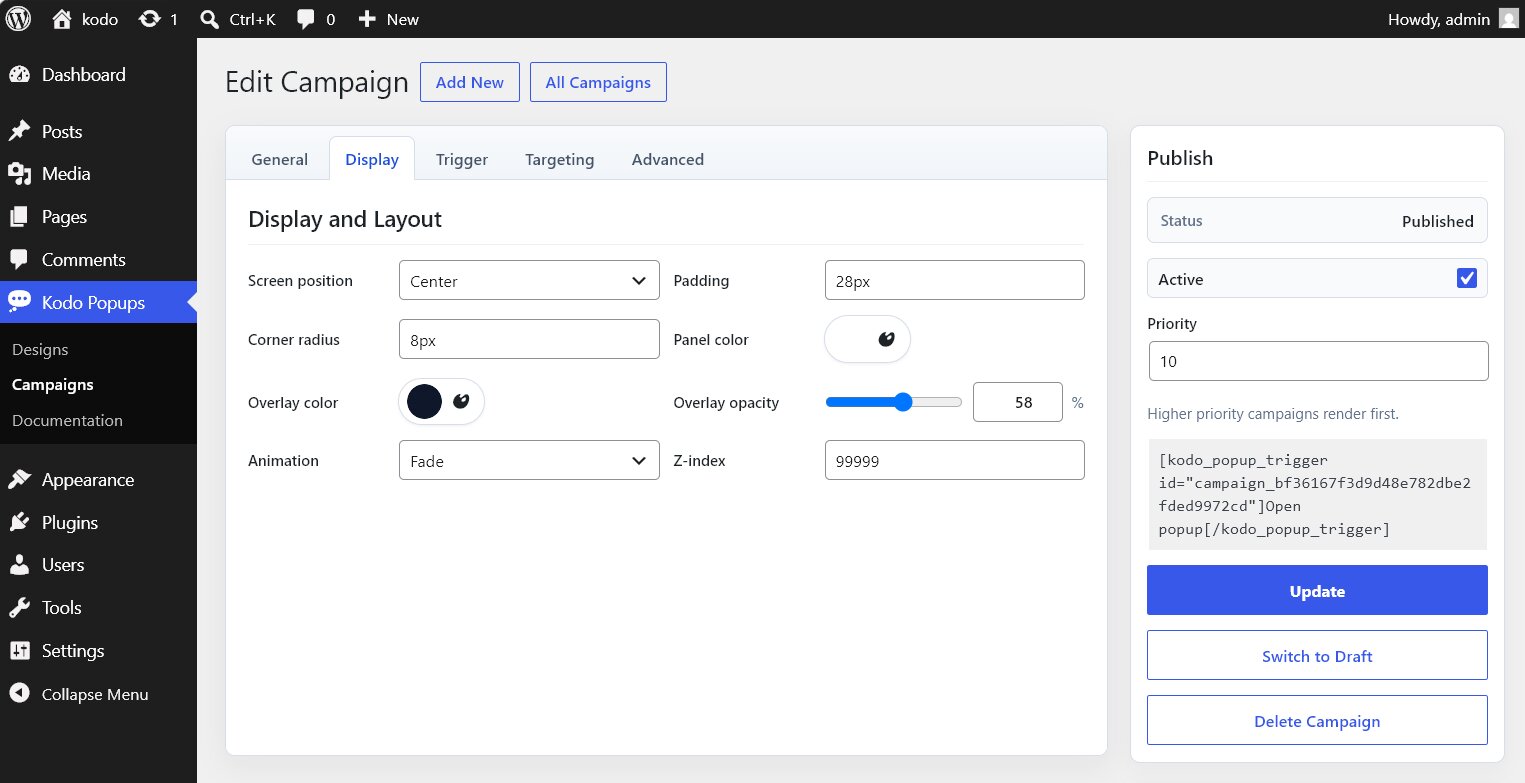
Display and Style Controls
Fine-tune how each campaign appears without editing code.
- Popup position
- Floating bar top or bottom position
- Panel padding
- Corner radius
- Panel background color
- Overlay color
- Overlay opacity
- Fade, slide, zoom, or no animation
- Z-index
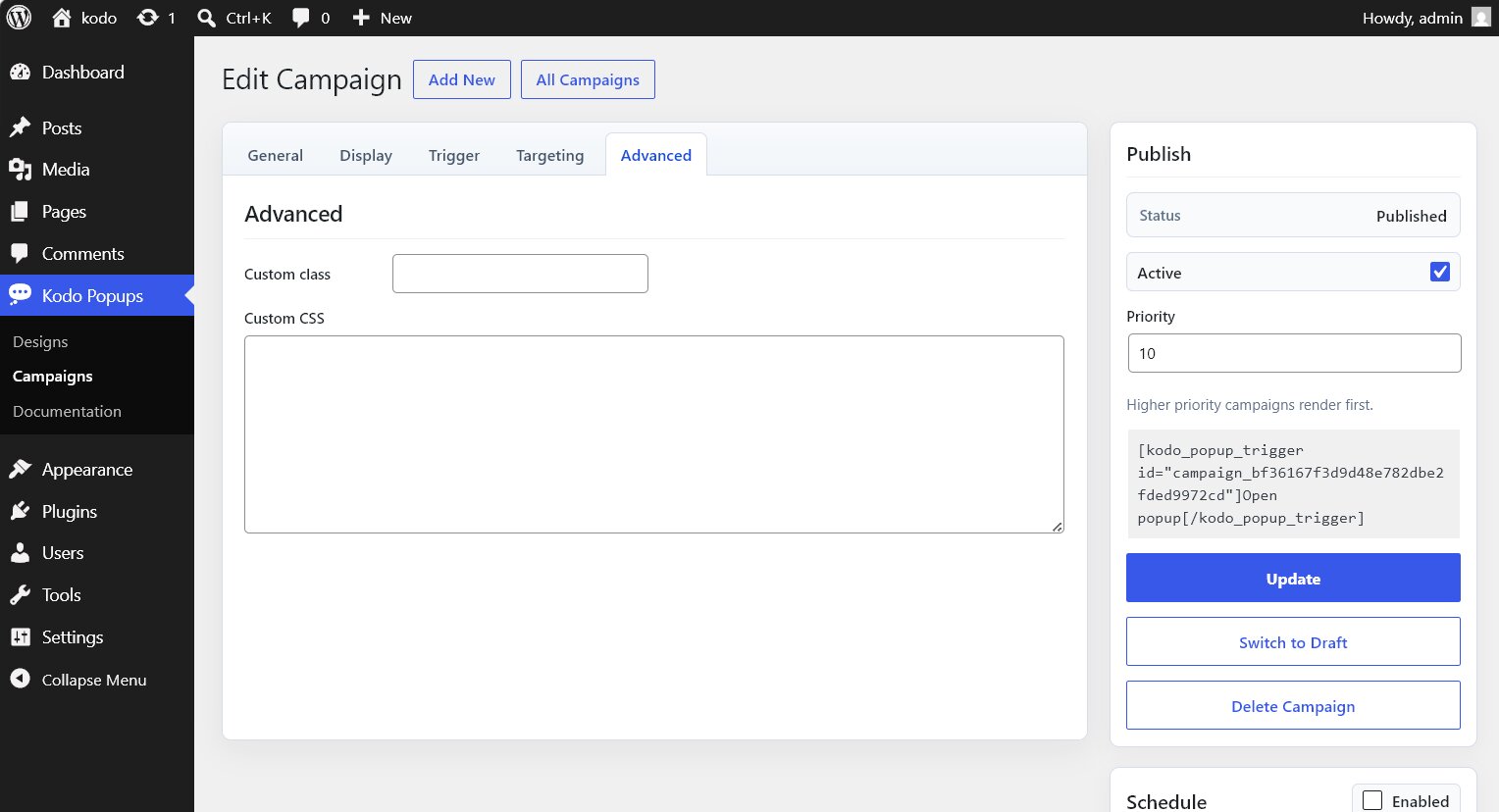
- Custom CSS
- Custom class
Publishing Workflow
Kodo Popup includes a normal publishing flow for campaign work.
- Save Draft: keep a campaign hidden while it is being prepared
- Publish: make a campaign eligible to render on the frontend
- Update: save changes to an existing published campaign
- Switch to Draft: take a campaign offline without deleting it
- Active toggle: pause or enable a published campaign
- Priority: control render order when multiple campaigns match the same page
Draft campaigns do not render on the frontend.
Scheduling
Campaigns can be scheduled with optional start and end times.
Use scheduling for:
- Limited-time offers
- Seasonal notices
- Event announcements
- Launch campaigns
- Temporary service messages
Close and Frequency Controls
Control what happens after a visitor closes a campaign.
- Show again on the next page load
- Hide for the current browser session
- Hide for a custom number of hours
- Hide for one day
- Hide until browser storage is cleared
You can also control:
- Close button visibility
- Close on overlay click
- Close with Escape key
- Close button accessibility label
Campaigns List Management
The Campaigns screen includes familiar WordPress-style management tools.
- Status views for All, Published, Draft, and Paused campaigns
- Search
- Row actions
- Row checkboxes
- Bulk publish
- Bulk move to draft
- Bulk activate
- Bulk pause
- Bulk delete
Built for WordPress Blocks
Designs are rendered through a Gutenberg-safe block pipeline, so your popup content can use normal WordPress block markup.
Kodo Popup is intentionally focused on Gutenberg designs instead of external page builders. This keeps campaign content portable, lightweight, and aligned with the WordPress editor.
Privacy
Kodo Popup does not send visitor data to external services.
Visitor close preferences are stored only in the visitor’s browser storage so repeat-display behavior can work without external tracking.
Requirements
- WordPress 5.9 or later
- PHP 7.4 or later
- Gutenberg/block editor support
Best Use Cases
Kodo Popup is useful for:
- Newsletter signup campaigns
- Coupon and discount popups
- Product announcements
- Service notices
- Booking prompts
- Event reminders
- Lead magnet offers
- Site-wide alerts
- Page-specific calls to action
- Shortcode-triggered popups from custom buttons
Frequently Asked Questions
Create focused WordPress popup campaigns without leaving the block editor workflow.
Build the Design once. Control the Campaign separately. Publish only when ready